Porady i samouczki
Jak ustawić X60 Kalibracja zużycia paliwa?

3 sierpnia, 2021
Udział:
 autoolstore.com
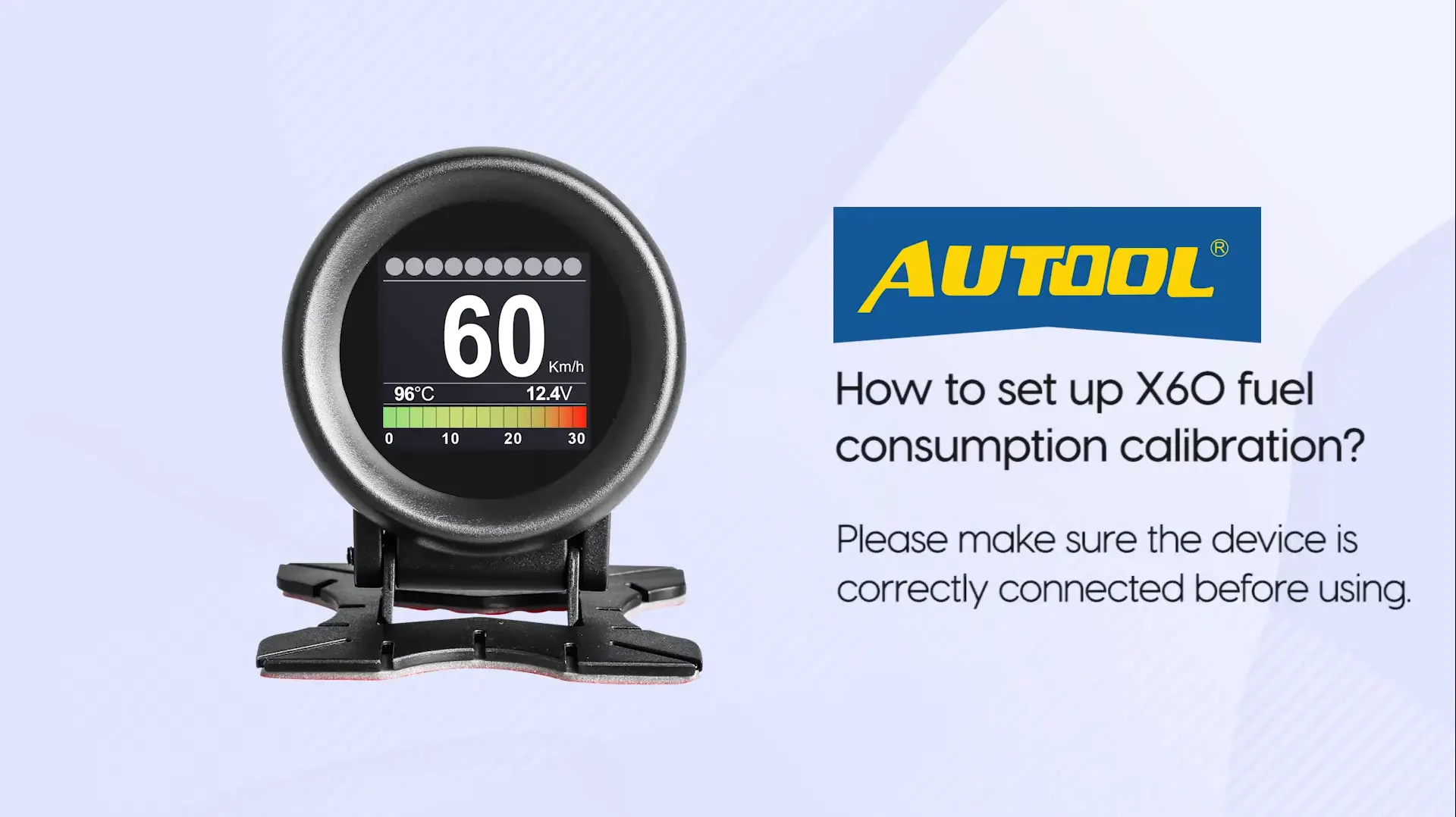
Niektórzy klienci mogą zauważyć błędy w zużyciu paliwa podczas korzystania z X60. Powód może być prosty: nie ustawiono kalibracji zużycia paliwa.
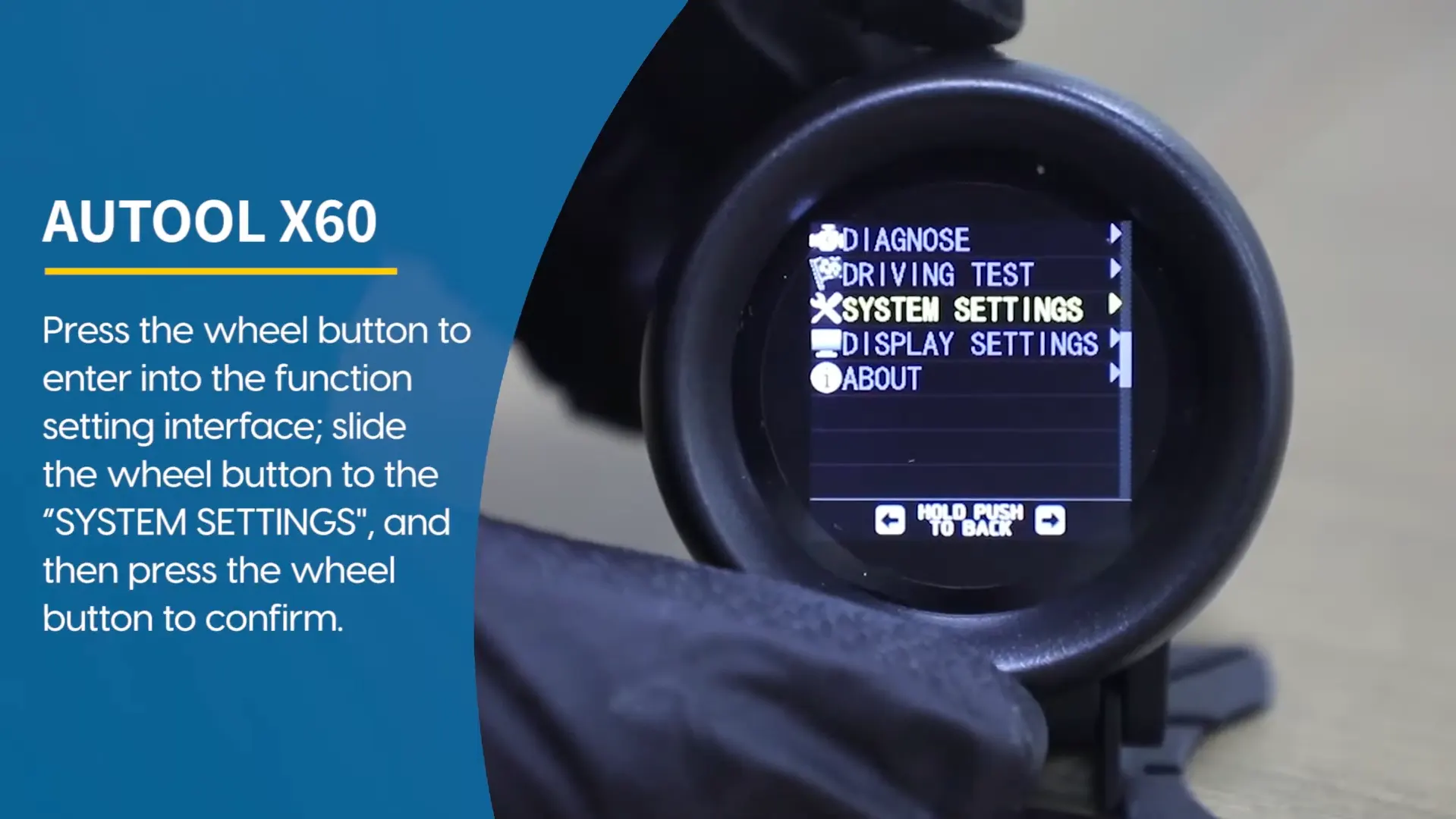
W tym przewodniku zachowano oryginalny czteroetapowy zrzut ekranu i pokazano, jak wejść w ustawienia systemowe, wybrać CONSP.CALIB, dostosować wartość i potwierdzić ustawienie.
Pierwszy krok
Najpierw kliknij w ustawienia systemu. To punkt wyjścia do kalibracji zużycia paliwa w X60.
Drugi krok
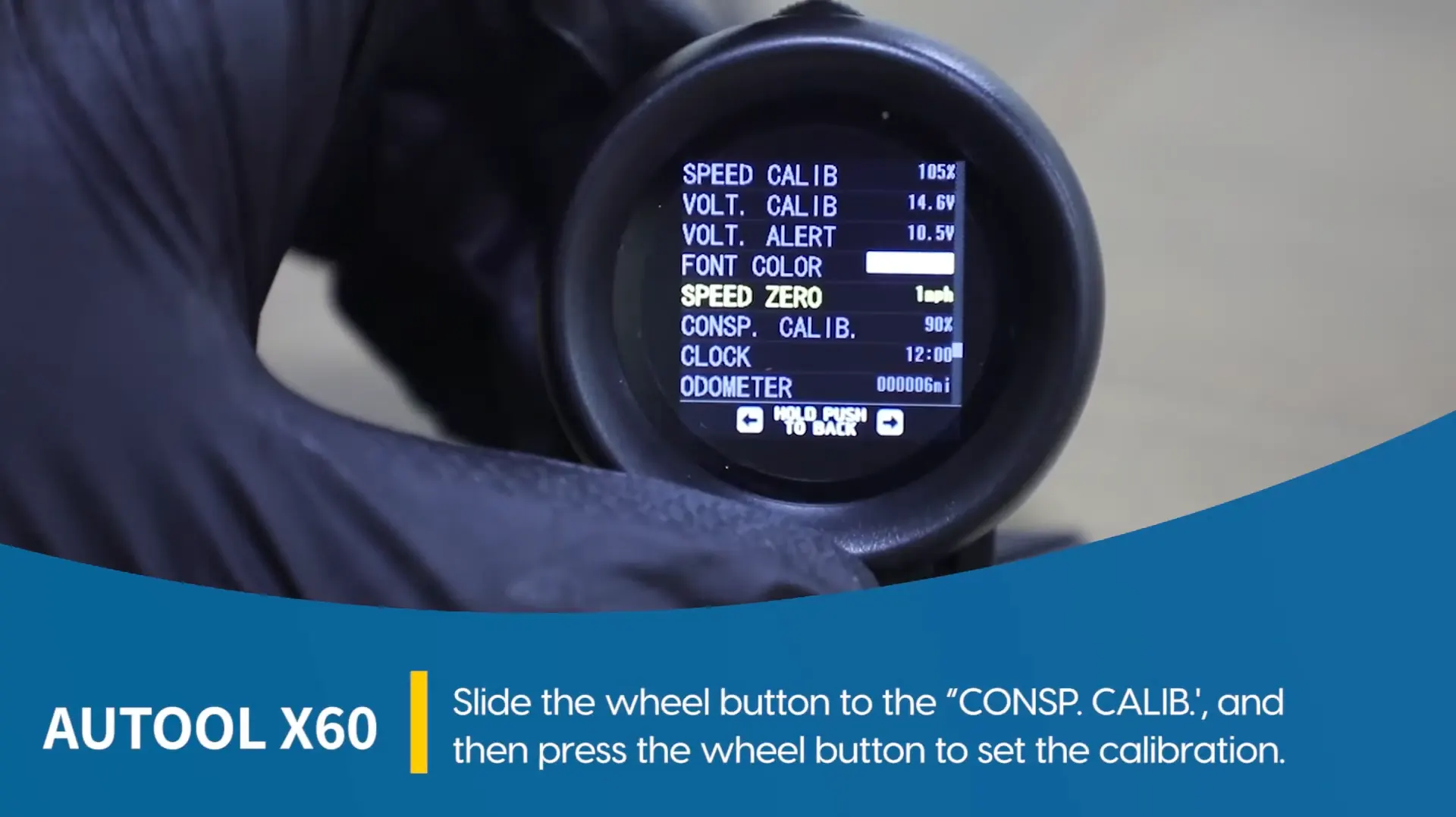
Po drugie, wybierz opcję wejścia KONSP.KALIBTo jest menu kalibracji służące do regulacji wyświetlacza zużycia paliwa.
Trzeci krok
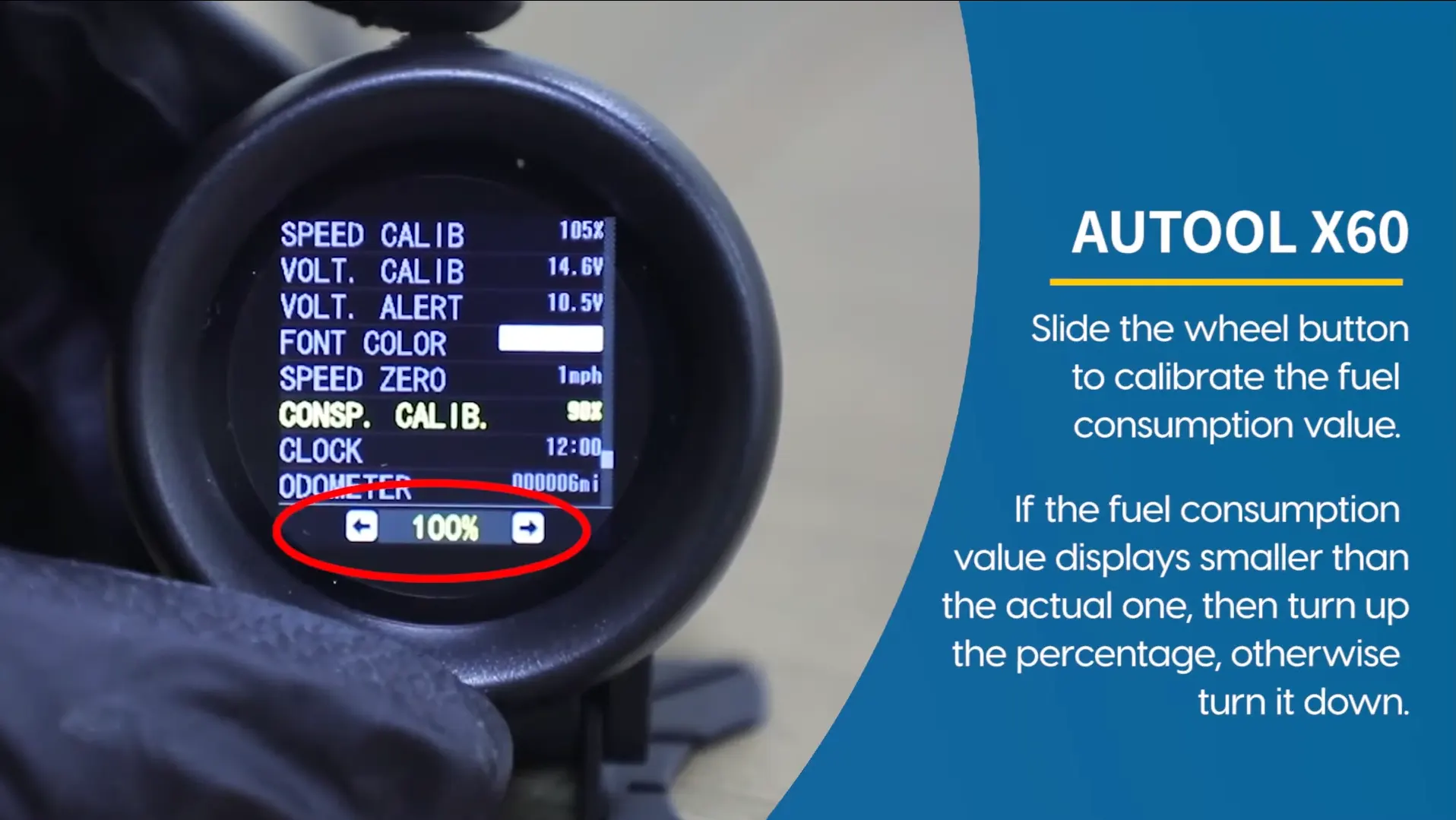
Po trzecie, przesuń pokrętło. Użyj obrazu jako punktu odniesienia do regulacji wartości kalibracji.
Ostatni krok
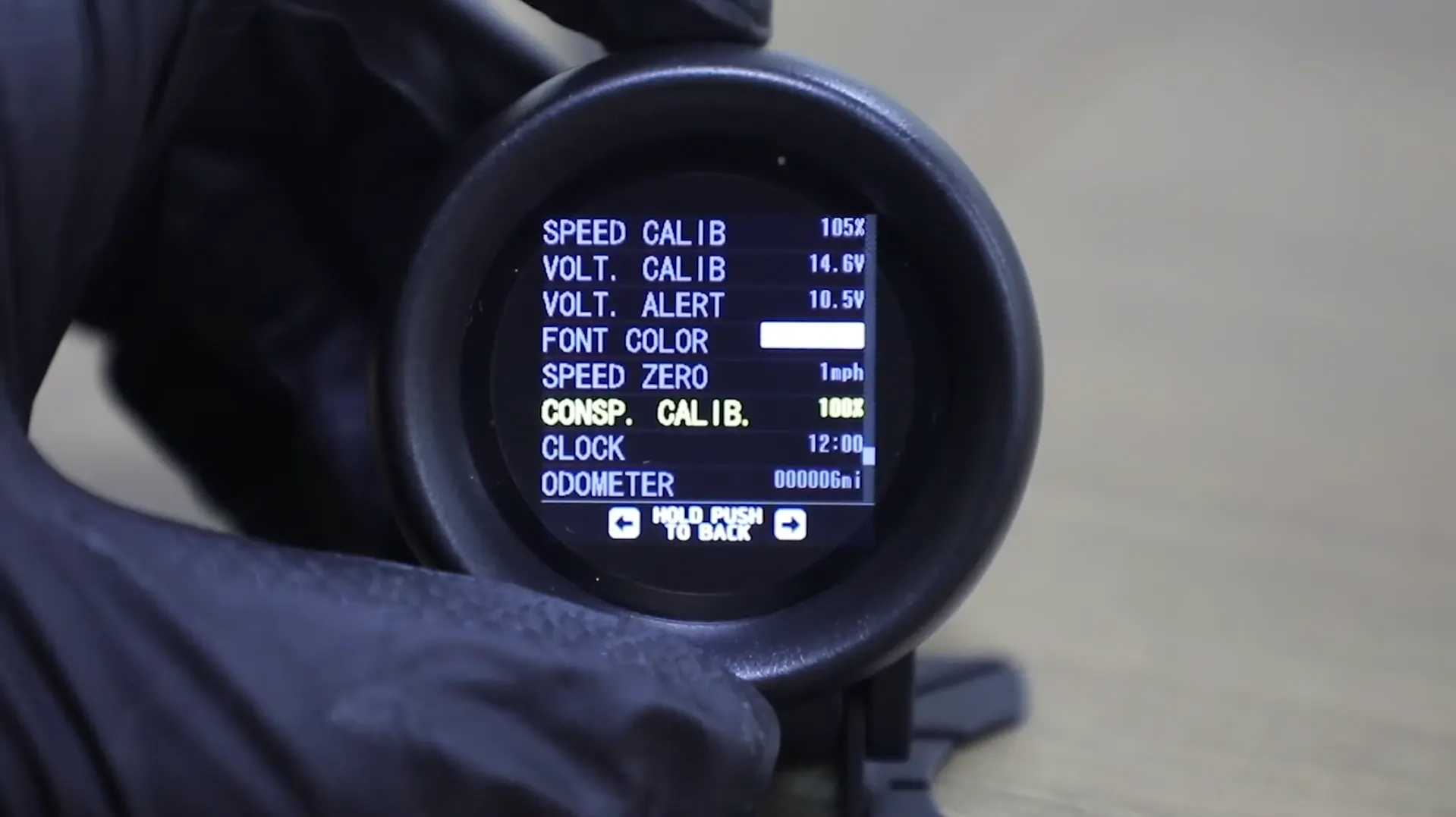
Na koniec kliknij, aby potwierdzić. Po potwierdzeniu ustawienia kalibracji zużycia paliwa są gotowe.
Film instruktażowy dotyczący konkretnej obsługi jest dostępny pod oryginalnym linkiem poniżej. Aby uzyskać więcej samouczków wideo dotyczących użytkowania produktu, skorzystaj z linku oficjalny kanał YouTube.
Jeśli X60 Jeśli wyświetla błędy dotyczące zużycia paliwa, sprawdź, czy kalibracja zużycia paliwa została ustawiona. Oryginalny proces wygląda następująco: wejdź do ustawień systemu, wybierz CONSP.CALIB, przesuń pokrętło, a następnie kliknij, aby potwierdzić.
Powiązane produkty
Wygenerowano za pomocą krótkiego kodu produktu WooCommerce, dzięki czemu karty dziedziczą strukturę karty produktu używaną w stylu wpisu referencyjnego.